
You have a 40-page manual to study by Monday, or three client reports to compare before a meeting. If you paste them into an ordinary chat, the model blends their content with what it already "knows", and it doesn't tell you where each sentence comes from. NotebookLM does the opposite: it works on the sources you upload, answers based on them, and for every claim it points to the passage in the document it came from.
It is one of the most useful AI tools for students and for anyone who works with many documents, and it is free in its basic version. Since July 2026 Google calls it Gemini Notebook, but the product is the same and the old name is still the one people search for.
This guide covers what it is, what it costs, how to use it step by step and when it beats ChatGPT. Features and limits were checked against Google's official help pages in November 2026.
What you will learn:
- What NotebookLM is and why its answers are easier to verify than a chat's
- What the free version includes and what its limits are
- How to upload sources, ask questions and generate summaries, mind maps and quizzes
- How to create the audio overview (the "podcast") and the video overview
- Three concrete uses for study, work and research, with ready-to-use prompts
In brief
- NotebookLM (now Gemini Notebook) is Google's research assistant that works on the sources you upload and cites the passages behind each answer.
- It is free with a personal Google account: up to 100 notebooks and 50 sources per notebook.
- It accepts PDFs, Word and Google documents, slides, websites, YouTube videos with captions, audio files and more.
- It turns sources into audio and video overviews, mind maps, flashcards, quizzes, reports and presentations.
- It supports over 80 languages, including for audio overviews.
What NotebookLM is and what it is for
NotebookLM is an AI-based research assistant developed by Google. It revolves around the notebook: a container where you upload the sources on a topic (lecture notes, articles, minutes, transcripts) and then work on them with the chat and the summarising tools.
What sets it apart from a general-purpose chatbot is grounding in your sources. Answers include inline citations: click a number and you see the exact passage in the document. That doesn't eliminate errors, but it makes them much easier to spot. It is the practical application of the technique we recommend for reducing AI hallucinations: supply the context yourself instead of relying on the model's memory.
In July 2026 Google announced that NotebookLM is becoming Gemini Notebook. Its official blog describes it as the same standalone product, now also connected to the Gemini app: notebooks created in Gemini sync with those in Gemini Notebook. The notebooklm.google address keeps working and existing shared links are redirected.
In practice, it is useful to:
- study: summaries, study guides, flashcards and quizzes from your own notes;
- work: compare reports, prepare for a meeting, pull decisions out of minutes;
- research: query dozens of articles and find where they disagree.
Is it free? Free version and paid plans
Yes. NotebookLM is free to use with a personal Google account. Google's paid plans (Google AI Plus, Pro and Ultra) and some Google Workspace licences raise the usage limits. Here are the ones listed on Google's help page in November 2026, which Google says are subject to change:
| Plan | Notebooks per user | Sources per notebook |
|---|---|---|
| Free | 100 | 50 |
| Google AI Plus | 200 | 100 |
| Google AI Pro | 500 | 300 |
| Google AI Ultra | 500 | 500 or 600, depending on the plan |
Each source can contain up to 500,000 words, and uploaded files can be up to 200 MB. For most study and office uses the free version is enough: 50 sources per notebook is a lot. Paid plans are for people who generate many overviews a day or work on very large archives.
How to use NotebookLM: a step-by-step guide
Take a real example: a 40-page PDF handout to turn into study material. The process is the same for a business report.
Create a notebook and upload your sources
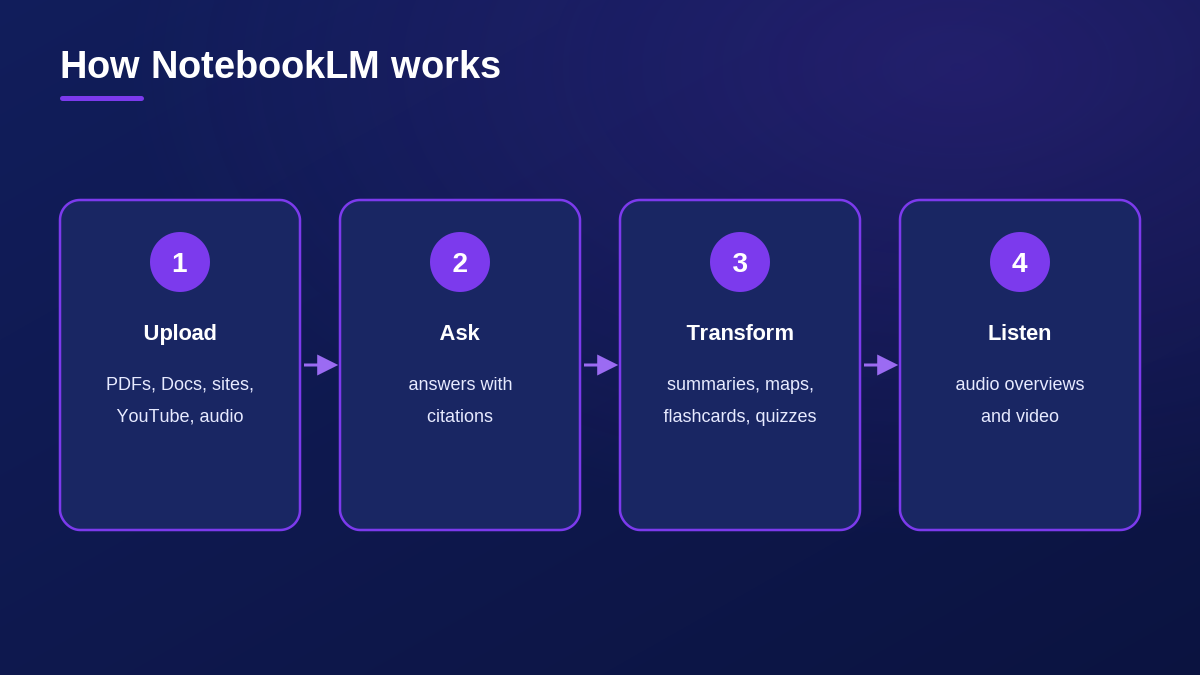
Go to notebooklm.google with your Google account and create a new notebook. Then add sources. According to Google's documentation you can upload:
- PDF, Word (docx), PowerPoint (pptx), TXT, Markdown, CSV and ePub files;
- Google Docs, Slides and Sheets from Drive;
- web pages by URL (only the text is imported, and paywalled pages are not);
- public YouTube videos with captions (the transcript is imported);
- audio files, images and pasted text.
One tip: upload only the sources that matter for that project. A notebook with ten relevant documents gives better answers than one with fifty mixed files.
Ask questions and get citations
In the chat, write your questions as you would with ChatGPT. The difference is that every answer carries citation numbers: click them to see the original passage. Make a habit of checking at least the claims you will actually use.
Based only on the uploaded sources, explain the 5 most
important concepts in chapter 3. For each one: a one-sentence
definition, an example and the page in the source. If a source
doesn't cover a concept, tell me instead of filling the gap yourself.
Generate summaries, FAQs, mind maps and presentations
In the Studio panel you will find the tools that turn sources into other formats: reports and study guides, mind maps, flashcards and quizzes, infographics and presentations. For a presentation, choose the option in the Studio panel and use the result as a draft to refine: structure and content come from the sources, but the message is still your job.
Audio and video overviews (the "podcast")
The audio overview is the feature that made NotebookLM famous: it turns your sources into a spoken conversation, much like a podcast. Google's guide lists four formats:
- Deep dive (default): a detailed conversation between two voices;
- Brief: under two minutes, a single voice;
- Critique: constructive feedback on a text of yours, such as an essay or a project;
- Debate: a discussion between two positions.
You can choose the language and length and add a note on what to focus on. Audio can be downloaded with the Download button. The longer version and the interactive mode, where you join in with spoken questions, are for now English only.
The video overview creates a summary video instead, in an explainer or short (about 60 seconds) format, with several visual styles; this can also be downloaded. Google warns that audio and video are AI-generated and may contain inaccuracies, and that a video can take more than 30 minutes to generate.
Three concrete uses: study, work, research
Study. Upload the notes for an exam and ask for a revision plan, then generate flashcards and quizzes from the Studio panel. Listen to the audio overview in your spare moments.
Create a 5-day revision plan for the exam, based only on
the sources. For each day: topics, 3 self-test questions
and the passages to reread. Put first the topics that
the sources cover at greatest length.
Work. Before a client meeting, upload the contract, the latest emails exported as PDFs and previous minutes.
Prepare a one-page briefing for tomorrow's meeting:
commitments made by both sides, deadlines, points still
open and where the sources contradict each other. Cite the
source for each point.
Research. Upload the articles on a topic and ask where they agree and where they don't. It is the fastest way to get your bearings in an unfamiliar body of literature, provided you open the citations before repeating a claim.
If you work a lot with office documents, you will find more use cases in our guide to AI and the future of work.
NotebookLM or ChatGPT: when to use which
They are not direct competitors. ChatGPT is a general-purpose assistant: it writes, reasons, searches the web and knows about many subjects. NotebookLM specialises in working on a closed set of documents.
| You need… | NotebookLM is better | ChatGPT is better |
|---|---|---|
| Answers based only on your files | Yes, with clickable citations | Possible, but it mixes in its own knowledge |
| Studying a specific material | Yes: flashcards, quizzes, audio | Useful for general explanations |
| Writing new, creative text | Limited | Yes |
| Up-to-date information from the web | Only from the sources you add | Yes, with web search |
| Listening to a summary as audio | Yes, audio overview | Not its main function |
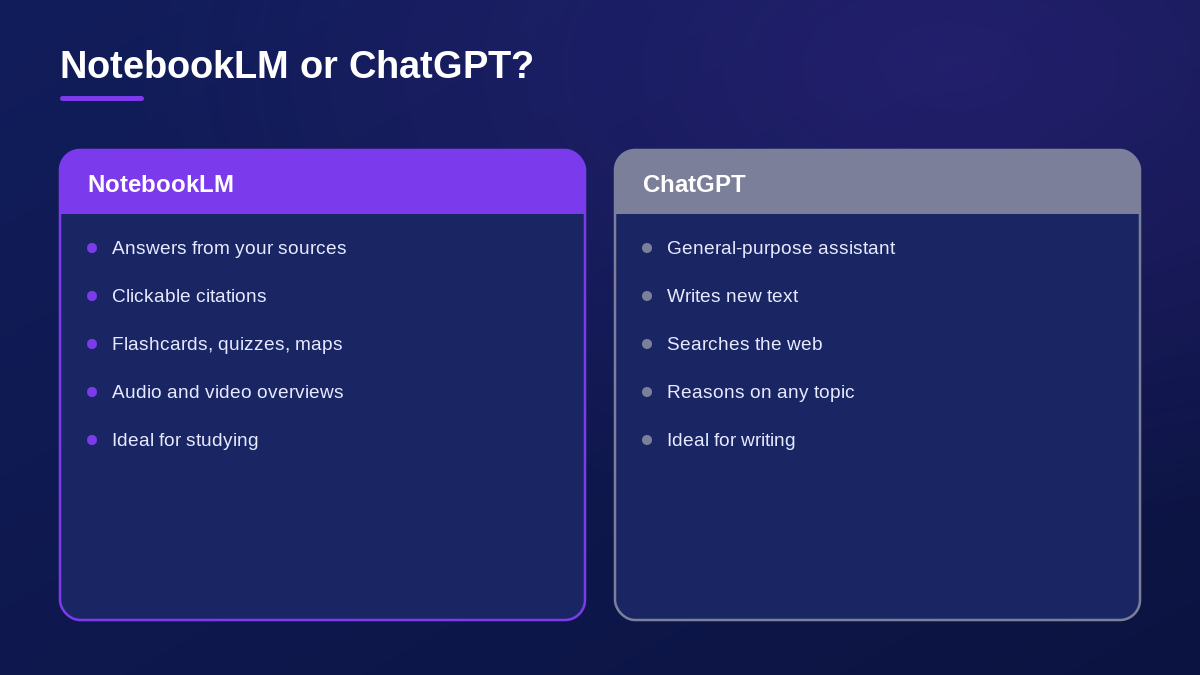
A combination that works: use NotebookLM to extract the facts from your sources and a general-purpose assistant to write the final text.
Common mistakes to avoid
- Putting everything in one notebook. Irrelevant sources make answers worse: one notebook per project.
- Not opening the citations. They are the tool's real advantage: if you don't check them, you are using it like any other chat.
- Trusting the audio blindly. Overviews are AI-generated, and Google itself warns they may contain inaccuracies.
- Uploading confidential documents with a personal account. With a Workspace account, Google states that uploads, questions and answers are not reviewed by human reviewers or used to train models. For company data, use your work account.
- Sending feedback on sensitive content. With a personal account, content submitted with feedback may be reviewed by human reviewers.
Frequently asked questions
Is Google's NotebookLM free?
Yes. With a personal Google account you can create up to 100 notebooks with 50 sources each, according to the limits Google listed in November 2026. Google AI Plus, Pro and Ultra plans and some Workspace licences raise the limits on notebooks, sources and generated content.
How many files can I upload to NotebookLM?
In the free version, up to 50 sources per notebook; with Google AI Pro up to 300, with Ultra up to 500 or 600. Each source can hold up to 500,000 words and each uploaded file up to 200 MB.
What is NotebookLM called now? Is Gemini Notebook the same thing?
Yes. Since July 2026 Google calls it Gemini Notebook, but it is the same product, still reachable at notebooklm.google. Google says existing shared links are redirected, and notebooks created in the Gemini app sync with it.
How do I make a presentation in NotebookLM?
Upload your sources to the notebook, open the Studio panel and choose the presentation option. The tool builds the slides from your sources: treat them as a draft, check the data and refine titles and message before using them.
How do I download files from NotebookLM?
Audio and video overviews can be downloaded with the download button in the Studio panel. Download may be unavailable in notebooks that use a Google Play Books ebook as a source, because of publisher restrictions.
The next step
NotebookLM is the right tool when the question isn't "what do you know about this topic?" but "what do these documents say?". You upload the sources, ask questions, check the citations and turn the material into summaries, quizzes or audio to listen to. It is free, and trying it takes only a few minutes.
If you want to learn it alongside the other free tools, the EULE Institute course Free AI Tools has a dedicated NotebookLM workshop for studying from your own documents, plus ChatGPT, Claude, Gemini and Copilot. It is free and awards a certificate of completion. It is currently taught in Italian; the English page has the details.