In the world of digital design, the word mockup is used so fluidly that if you ask three designers, you'll get three different answers. For some, it's a grayscale sketch. For others, it's a finished screen in Figma. And for others still, it's a promotional shot with an iPhone showing off an app. All these definitions are correct in different contexts—the problem arises when a client and a designer use the same word to mean different things.
This guide clarifies once and for all what a mockup is in 2026, how it differs from a wireframe and a prototype, which context calls for which format, and what tools to use. You'll also find 20 real-world examples, from digital product mockups to presentation mockups, to help you understand what's ready for your portfolio.
What you'll learn from this guide:
- The three common definitions of "mockup" in the industry
- The technical differences between a wireframe, mockup, prototype, and product shot
- When to use each one in the design process
- The best tools to create them (free and paid)
- 20 real examples with an analysis of what makes them effective
- Resources for free, downloadable mockups
What Is a Mockup?
A mockup is a high-fidelity representation of what a digital interface will look like when it's finished. It includes the final colors, real typography, actual images, and component states (like hover or disabled), but it is not clickable and does not simulate interactions. It's a "high-quality" photo of the design.
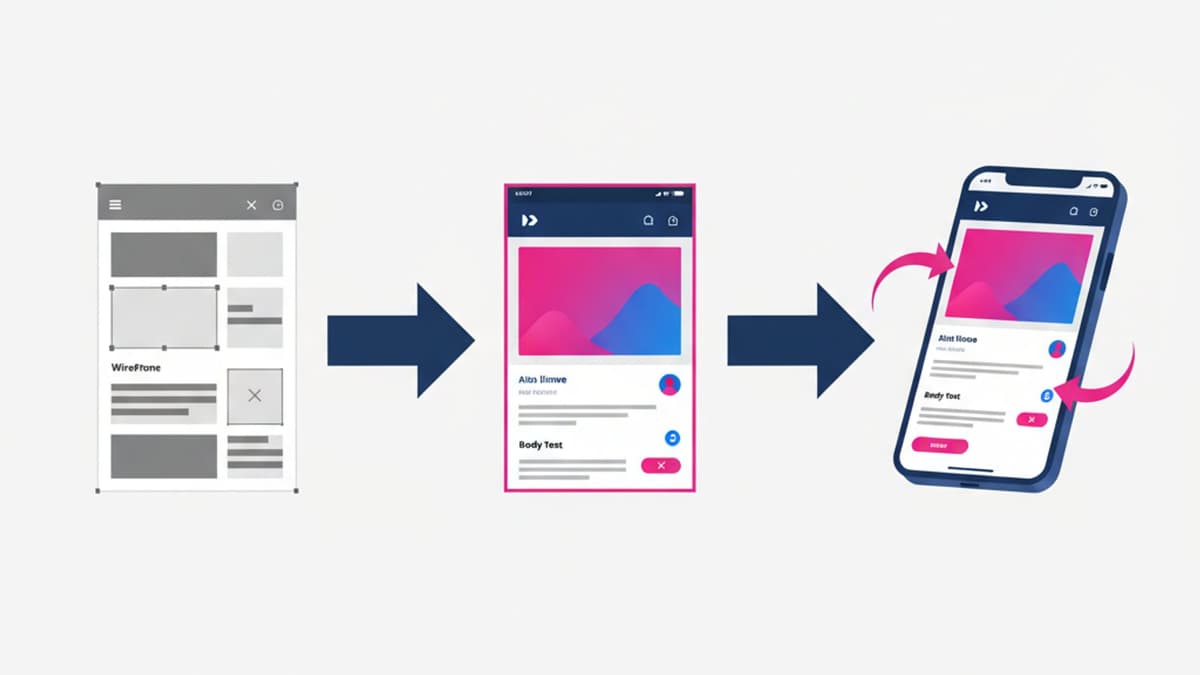
In its most common technical sense, a mockup sits between two extremes:
- Wireframe (low/mid-fidelity) → Structure and layout, usually in grayscale, without visual design decisions.
- Mockup (high-fidelity, static) → The page as it will appear, pixel-perfect, but static.
- Prototype (high-fidelity, interactive) → The mockup plus clickable links that simulate real use.
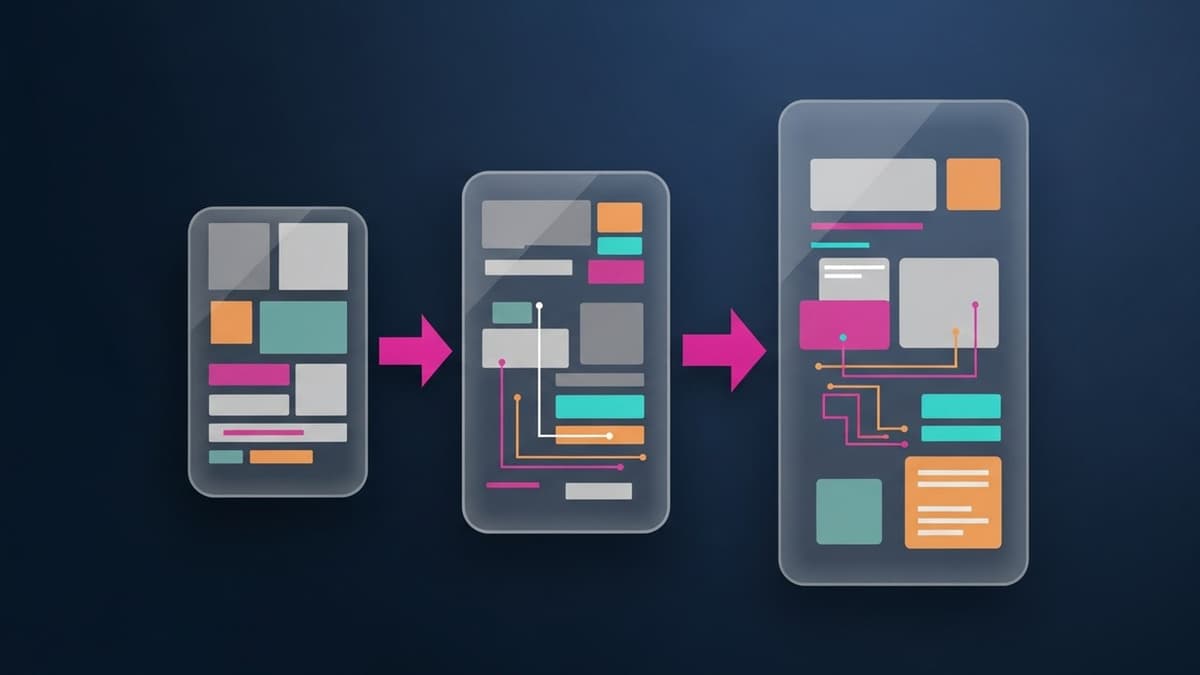
A modern designer progresses from wireframe → mockup → prototype during a project, increasing fidelity as decisions are finalized.
The Other Two Meanings of "Mockup"
Beyond the technical definition above, "mockup" is used in two other distinct contexts:
- 3D Presentation Mockup = An image where the design is shown "inside" a physical device (iPhone, MacBook, iPad, billboard). This is typical for portfolio case studies or pitches. For example, an app screen shown on a photo of someone holding a smartphone.
- Print Design Mockup = In the graphic design world, this is a rendering of a physical product: business cards, packaging, t-shirts. It's different from digital, but the word is the same.
To avoid confusion when communicating with a client or colleague, always add a clarifying adjective: "UI mockup" for the pixel-perfect design, "3D mockup" or "product shot" for the presentation image, and "print mockup" for physical products.
Wireframe vs. Mockup vs. Prototype: A Comparison
| Characteristic | Wireframe | Mockup | Prototype |
|---|---|---|---|
| Visual Fidelity | Low/Medium | High | High |
| Colors | Grayscale | Final brand colors | Final brand colors |
| Typography | Placeholder | Final | Final |
| Images | Boxes with an X | Real images | Real images |
| Interactivity | No | No | Yes |
| Creation Time | 30 min - 2 hours | 2-8 hours | 2 hours - 2 days |
| Purpose | Validate structure & flow | Validate visual design | Test user experience |
| Audience | Internal team | Team + stakeholders | Real users (usability testing) |
To learn more about the early part of the process, read our guide on wireframing.
When to Use a Mockup in Your Process
You don't need a mockup for every project. There are three key moments when they are truly necessary:
- Presenting to non-technical stakeholders — A client who isn't a designer won't understand a wireframe. A pixel-perfect mockup gets you to sign-off faster.
- Validating the visual design — Once the structure is set, the mockup is used to establish colors, typography, and visual hierarchy before building interactive prototypes.
- Developer handoff — Developers need to see the final state of every page with exact values (spacing, colors, shadows). A mockup in Figma with the inspect panel is the industry standard.
When you don't need one:
- During research and ideation — In these phases, a wireframe is faster and less cognitively demanding.
- When working with a mature design system — You can often jump directly from a wireframe to a clickable prototype.
- For usability testing on user flows — You need interactive prototypes, not static mockups.
The Best Tools for Creating Mockups
In 2026, 90% of digital mockups are created with one of these tools:
1. Figma (90% of the Market)
Figma has become the undisputed industry standard for digital design. It allows you to create pixel-perfect mockups from wireframes, reuse components from a design system, collaborate in real-time, and export assets for developers. It's free for basic use and has paid plans for teams (around $15/user/month).
Why it's the standard: Components with variants, auto-layout for responsive resizing, Variables for design tokens, plugins for accessibility, and integrations with tools like Jira, Linear, and Notion.
2. Adobe XD / Sketch
Sketch (Mac only) was king until around 2020. It's still used by some senior designers out of habit. Adobe XD has been practically sunset by Adobe (as of 2023), but some teams still use it.
In 2026, we recommend that beginners start directly with Figma and skip these two.
3. Penpot (Open Source)
Penpot is an open-source alternative to Figma, free even for teams. It's an interesting choice for those looking to avoid vendor lock-in, but its community is much smaller. For professional client work, Figma is still more convenient.
4. Photoshop (Legacy)
Before 2015, Photoshop was the standard for mockups. Today, it's only used for mockups that require complex photo effects or advanced visual retouching. For pure UI design, it's obsolete.
5. Tools for 3D Presentation Mockups
For presentation mockups (your design inside a physical smartphone), the best tools are:
- Shots — A free web tool with modern device frames and 1-click export.
- Mockuuups Studio — A huge library of realistic scenes.
- Angle 5 — A premium collection of vector mockups for Figma.
- Placeit — A large library of video and photorealistic mockups.
20 Real Mockup Examples (by Type)
We'll analyze these so you can see what makes them effective, not just how to copy them.
Pixel-Perfect UI Mockups (in Figma)
- Stripe Dashboard — Mockups of all states (empty, loading, error, data-filled). Perfect visual hierarchy.
- Linear App — Mockups with annotated micro-interactions. Each screen specifies what changes on click.
- Notion Mobile — Mockups of a feature in all three themes (light, dark, system). Shows multi-context thinking.
- Figma Community — Weather App — A great example for junior designers: clean, well-structured, with reusable components.
- Revolut Card Design — Mockups of both the interface and the physical card, showcasing a cross-media design system.
Presentation Mockups (iPhone/MacBook)
- Dropbox — Product Case Study — The Dropbox app screen on a MacBook Pro in a lifestyle-style photo.
- Spotify — Annual Campaign — An iPhone with the Spotify app in someone's hand, with a blurred concert background.
- Airbnb — Onboarding Feature — A MacBook, iPhone, and iPad in the same image, showcasing a multi-device experience.
- Calm — App Feature — An iPhone on a nightstand with soft lighting, displaying a meditation screen.
- Duolingo — Gamification — A Duolingo screen on an iPhone with a zoom effect on the "streak" feature.
Mockups for Portfolios & Case Studies
- Medium "How I Redesigned Netflix" — A series of full-page mockups with design notes below each one.
- Dribbble — Checkout Flow Redesign — Six sequential mockups showing the before-and-after.
- Behance — Banking App Case Study — Mockups with annotations explaining design decisions.
- Read.cv — Maya Gao's Portfolio — Static mockups interspersed with contextual explanations.
- UX Collective — Grocery App Redesign — Ten sequential screens with storytelling of the design process.
"Wow Factor" Mockups for Pitches
- Apple Keynote — Vision Pro Launch — A photorealistic 3D mockup of the AR interface in a living room setting.
- Tesla — App Mockup — An iPhone on the dashboard of a Tesla with the app visible.
- Uber — 2018 Rebrand — A video mockup with fluid transitions between app states.
- Pinterest — Lens Launch — An iPhone pointed at a real object with the Lens overlay.
- Headspace — Breathe Feature — A mockup with an animated gradient to show the breathing exercise.
Free Mockups: Where to Download Them
If you want to start with ready-made mockups without creating them from scratch, these are the most comprehensive free resources in 2026:
- Figma Community — Search for "mockup" + the device you need. Hundreds of free templates, downloadable with one click.
- Freepik — Mockups — Over 1 million free mockups (attribution required) in PSD format.
- Mockup World — Curated, high-quality PSD mockups with smart objects.
- LS Graphics — Premium, Apple-like quality mockups, with several free options.
- Smart Mockups — A web-based tool to create mockups in 30 seconds from your browser.
Common Mistakes When Creating Mockups
The ones we see most often in junior designer portfolios:
- Visually pleasing but structurally flawed mockups — The visuals are nice, but the hierarchy is wrong. The first test is to remove the color: if the design works in grayscale, it works. Otherwise, color is just hiding structural problems.
- Inconsistent typography — Four different fonts on a single screen, random sizes. A professional mockup uses at most two font families and a defined type scale.
- Endless lorem ipsum — Filling every field with "Lorem ipsum dolor sit amet" makes the design look fake. Use realistic content or plausible examples from the domain.
- Oversized stock images — A 1600×900 photo in every card. Use images that are realistic for the context, but not overpowering.
- Showing only the happy path — Only showing the ideal state without empty, loading, or error states. A senior-level mockup always shows all component states.
Frequently Asked Questions (FAQ)
What's the difference between a mockup and a prototype?
A mockup is static: it's an image of the finished design but doesn't react to clicks. A prototype is the mockup with links connected, so when you click a button, you move to another screen, simulating the real use of the product. They both live in the same Figma file: you build the mockup and then, in Prototype mode, you add the clickable links.
Is Figma or Photoshop better for mockups?
Figma, without a doubt, for digital interface mockups. Figma is vector-based, collaborative, component-driven, and fast to edit. Photoshop only makes sense for presentation mockups with photographic effects (reflections, complex shadows, smart objects) that Figma doesn't handle. In 2026, any UX/UI designer spends 95% of their time in Figma and only opens Photoshop for occasional touch-ups.
Do non-designer clients understand the difference between a wireframe and a mockup?
Rarely. A client often sees a wireframe and thinks, "Is this it? It looks ugly," because they lack the visual training to read the abstraction. For this reason, many designers skip the wireframe presentation with clients and go straight to the mockup. On internal teams, however, wireframes are essential for deciding on structure without getting distracted by visuals.
Do we still need to create mockups in 2026 with AI?
AI tools (like Midjourney, Stable Diffusion, or Figma AI) can generate quick presentation mockups, but they don't replace professional UI mockups. A designer uses AI to: generate realistic placeholder images, create rapid color variations, and accelerate portfolio storytelling. But serious, accessible, and design-system-compliant interface components still need to be built by hand.
How do you present a mockup to a client?
Three rules: (1) Always present them in context—not just the screens alone, but shown inside a device or with a brief caption explaining what it is. (2) Number the screens—"1/12 — Home," "2/12 — Product List"—to help the client stay oriented. (3) Attach a legend of reused components. A client who understands the logic of your design system is more likely to value and pay for future maintenance work.
Next Steps
Knowing how to create professional-quality mockups is a basic requirement for any UX/UI designer in 2026. But the real career leap comes when you learn to build them within a coherent design system, with reusable components and complete states—not just as individually painted pixels.
The complete UX Design course by CorsoUX teaches you how to systematically move from wireframe → mockup → prototype with Figma. It includes 40+ hours of hands-on exercises, building a personal design system, and real case studies. By the end, you'll have 3-4 high-quality mockups in your portfolio, each with a detailed explanation of the design process.
To get started right away:
- Guide to Wireframing — The step before the mockup
- Figma Tutorial — The tool to make them
- Design Systems: How to Build One — The next level to become a senior designer
- UI Design: Principles and Trends for 2026 — How to make your mockups visually effective