

You have a meeting on Thursday and a forty-page report to turn into ten slides. You open an AI tool, type "create a presentation on the report" and thirty seconds later you have ten tidy slides, with icons and a smart theme. Then you read them. Generic headlines, bullet lists that could sit in any presentation, no clear idea of what the audience should decide at the end.
The fault is not in the tool. An AI presentation maker is excellent at layout and at filling space, but it does not know what you want from those people, in that room, in those ten minutes. If you don't tell it, it guesses, and it guesses in the most predictable way.
That is why well-made AI presentations follow a precise order: first the message and the outline, then the visual generation, finally human review. In this guide you will find a 5-step method, two prompts to copy and a comparison of the main tools. Features and plans were checked against the official pages in November 2026.
What you will learn:
- What AI can do for a presentation and what must stay with you
- A 5-step method, from the goal to the final review
- Two ready prompts: the outline and the slide text
- How Gamma, Copilot in PowerPoint, Canva and Google Slides with Gemini compare
- The mistakes that make an AI presentation instantly recognisable
In brief
- A good AI presentation starts from a clear message, not a generic prompt: define the goal and the audience first.
- Have an assistant such as ChatGPT or Claude write the outline, correct it by hand, and only then move to the tool that generates the slides.
- Gamma, Copilot in PowerPoint, Canva and Google Slides with Gemini all do layout well; none replaces checking numbers and sources.
- Almost all have a free plan or a trial, but with limits: check credits, number of slides and watermarks on exports before you promise a delivery.
- The last hour goes to review: data, brand consistency, speaker notes.
What AI can do for a presentation (and what it can't)
AI is very useful at four points in the work: finding a structure, rewriting a long text into short sentences, proposing a consistent design and adapting the same content to different audiences. These are tasks where you start from a blank page or a document to squeeze down, and where a decent draft in two minutes is worth hours.
It cannot do three things, and they are the ones that matter most.
Decide what you want to achieve. "Convince the board to approve the budget" and "update the team on project status" are two different presentations, built from the same material. AI does not choose for you.
Know your audience. It knows what presentations on a topic usually say. It doesn't know that your director has already seen that chart three times and only wants the main risk.
Guarantee that the numbers are true. A language model can write a plausible figure that is made up. For a presentation this is the most concrete risk, because a wrong number on a slide stays up in front of everyone. A habit helps: treat every figure the model gives you as unverified until you have matched it to a source document.
Keep this in mind for everything that follows: AI speeds up production, but responsibility for what is written on the slide stays with you.
The 5-step method
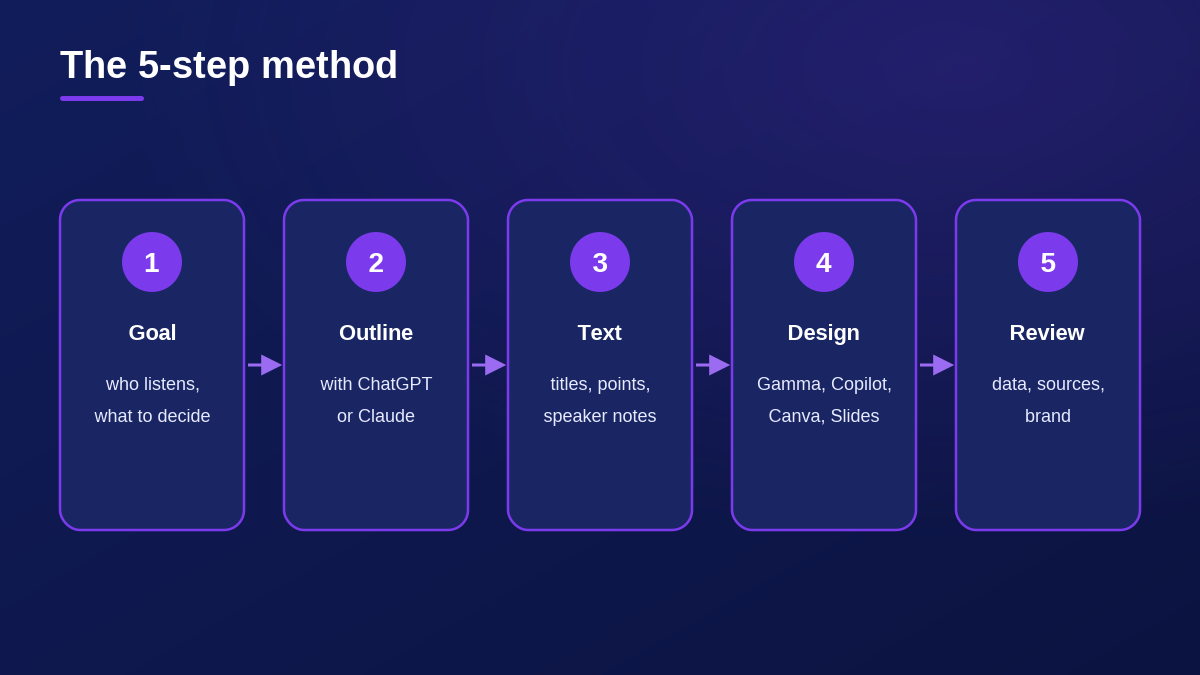
1. Goal and audience
Before opening any tool, write three lines: who is listening, what they must know or decide at the end, how much time you have. For example: "The leadership committee, which has to approve buying new software, I have 15 minutes plus questions".
Everything else follows from this, including the number of slides. A rule of thumb, not a law: one slide for every two or three minutes of speaking, not counting the title and closing slides. Fifteen minutes with questions at the end is about six or seven slides, not twenty.
2. Outline with an AI assistant
This is the step where AI gives the most if you use it as a sparring partner. Give it the goal, the audience and the source material, and ask for an outline, not the slides.
You are a consultant who prepares presentations for executives.
Goal: get the leadership committee to approve the purchase of
new order-management software.
Audience: 5 directors, short on time, interested in cost, risk
and timing.
Length: 15 minutes plus questions.
Material: I'm pasting the evaluation report below.

Propose an outline of 7 slides. For each slide write:
1) the title as a sentence that states something (not a label),
2) the single idea that should stick,
3) which data from the report supports it.
If information is missing, tell me instead of inventing it.
The decisive detail is the last line. Explicitly asking it to flag gaps lowers the risk that the model fills them with invented numbers. If you want more request patterns to adapt, our guide to prompt engineering is a good place to start.
Read the outline as if you were the audience. Move, cut, rewrite. This is the moment when changing your mind costs least.
3. Slide text and speaker notes
With the outline approved, ask for the text. The constraint that works best is length: few words on the slide, the rest in the notes.
Take the approved outline above and write, for each slide:
- the title (12 words at most),
- at most 3 bullet points, each under 12 words,
- speaker notes: 80-100 words, in spoken English, with an
  opening sentence and a line that leads into the next slide.
Use only the data in the report. Where a figure is missing,
write [TO VERIFY].
The [TO VERIFY] placeholder is useful because you can search for it with the find function: before you hand the deck over, there must be zero.
4. Visual generation
Only now does the tool that creates the slides come in. You give it a solid text, and its job shrinks to what it does best: choosing layouts, arranging them, suggesting images and icons. We compare the tools in the next section.
One piece of advice that applies to all of them: start from a theme or template that already respects your brand, rather than letting the tool choose colours and fonts. It saves you the longest correction.
5. Review: data, sources, brand consistency
The last step, and the one most often skipped. Check in this order:
- Numbers. Is every figure copied from the source document? Check it against the document, not by asking the same model to confirm.
- Sources. If a slide cites a study or a regulation, open it and check that it exists and says what the slide claims.
- Consistency. The same terms for the same things, proper names spelled the same way, dates and number formats uniform throughout.
- Images. Generated images need a close look: unreadable text, odd hands and inconsistent details are common.
- Brand. Do logo, colours and fonts match the company template?
- Delivery. Read the notes aloud once. If you stumble, so will the audience.
The tools compared
The main tools for creating presentations with AI do similar things in different ways. The table summarises what the official pages state as of November 2026. Plans, credits and limits change often: before a deadline, always check the maker's page.
| Tool | How it works | Free plan | Good to know |
|---|---|---|---|
| Gamma | Generates the deck from a prompt, pasted text or a file; scrolling "card" format | Yes: 400 starting credits that do not renew, up to 10 slides per request | On paid plans it rises to 100 slides per request and the "Made with Gamma" badge disappears from exports |
| Copilot in PowerPoint | Builds a presentation from a prompt or a Word document; can ask about audience, length and images | Depends on licence: you need Copilot included in your Microsoft 365 subscription | Respects the company template and the Brand Kit if your organisation has created one; works in PowerPoint for Windows, Mac and web |
| Canva | Suggests presentations from a description, using Canva's library of templates and elements | Yes, with a monthly limit on AI tool uses | Some elements and templates are reserved for Pro plans: check before you download |
| Google Slides with Gemini | From the Gemini side panel it generates a plan, then the slides, optionally using Drive files as sources | Depends on your Google Workspace or Google AI plan | Per Google's June 2026 announcement, generating whole presentations launched in English (US) only, on Workspace Business and Enterprise Standard and Plus plans and Google AI Pro and Ultra |
| ChatGPT or Claude | Used for the outline, text and notes; not for the design | Yes, with limits | On paid plans Claude can also create PowerPoint files with its file creation feature: the visual result is basic |
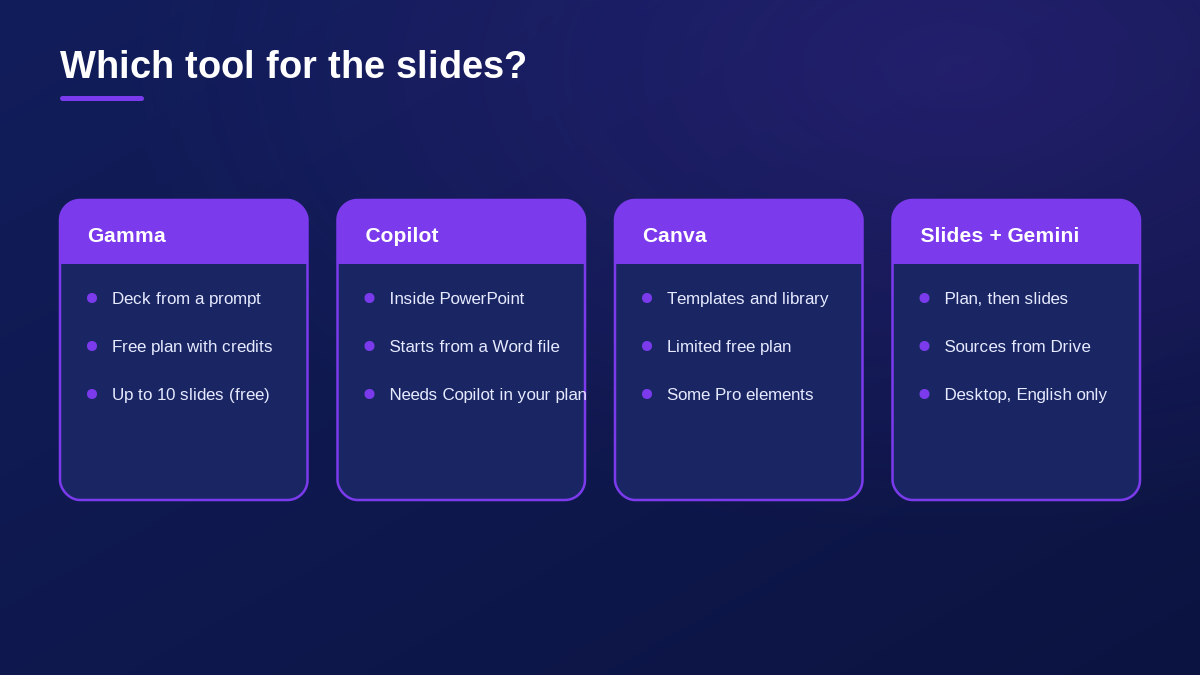
How to choose? A practical criterion: use the tool you already work in. If your company has Microsoft 365 with Copilot, start from PowerPoint: it inherits the company template and works on the Word documents you already have. See our guide to Microsoft Copilot for what each version includes. If you live in Google Workspace, try Gemini in Slides, but note the language limit above if you present in anything other than English. If you have neither and need a quick, striking presentation, Gamma or Canva are the simplest starting points.
An alternative for people starting from a long document is to let an "agentic" assistant make the first draft from your folder of files, as we describe in our guide to Claude Cowork. The method still applies: outline approved first, design after.
Two notes on the free tiers. Gamma's free credits are a starting allowance, not a monthly one: if you use them up on trials and redos, they do not refill. And in most tools the maker's badge appears on exports from free plans, which can be a problem if you are delivering to a client.
A complete example: from a report to 10 slides
Imagine you have to present the internal report "Evaluation of the new order-management software" to department heads. Here is how you turn it into a deck, step by step.
Goal and audience. Get the go-ahead for the purchase. Audience: five department heads, interested in start-up time, cost and the impact on their work. Fifteen minutes.
Outline. You paste the report into the assistant and use the first prompt. You get a seven-slide outline. You fix two things: the "Background" slide is too long, so you move it to the opening as a single sentence; and you add a slide on risks, which the model had left out because in the report they were buried in an appendix.
Text and notes. With the second prompt you generate titles, points and notes. Two slides contain [TO VERIFY]: the training cost was missing. You get it from the purchasing department and write it in yourself.
Design. You open your tool: in PowerPoint with Copilot you start from the company template, in Gamma you paste the text and choose a sober theme. You ask it not to add more text and to use simple images.
Review. You compare every figure with the report, replace two images with obvious flaws, make the department names consistent and rehearse the notes aloud. The result is not "the presentation the AI made": it is your presentation, prepared in a fraction of the time.
If this is your first time using AI for office work, the closest tasks (email, documents, meeting minutes) are covered in the free course AI for the office, which is currently taught in Italian only.
Common mistakes to avoid
- Starting from the prompt "create a presentation on…". Without a goal and an audience you get slides that suit anyone, and so suit no one.
- Slides full of text. If the audience is reading, they are not listening. A few points on the slide, the rest in the notes.
- Unchecked numbers and sources. An invented percentage or a citation that does not exist is the most embarrassing error. The [TO VERIFY] placeholder method exists for this.
- Leaving generated images unexamined. Check them one by one, especially if they contain text or people.
- Putting confidential data into any tool. Before uploading an internal report, check that the tool is approved by your company and which account you are using.
- Handing over the first result. The first generation is a draft. The real work starts there.
Frequently asked questions
What is the best AI for making presentations?
There is no single answer: it depends where you work. Copilot in PowerPoint is the natural choice in a company that uses Microsoft 365, Gemini in Slides for people in Google Workspace, Gamma and Canva for anyone who wants a quick result without a company subscription. For the outline and text, an assistant such as ChatGPT or Claude makes more of a difference than the design tool.
Can you create AI presentations for free?
Yes, with limits. Gamma has a free plan with 400 starting credits and up to 10 slides per request, Canva has a free plan with a monthly limit on AI tools, and the free plans of ChatGPT and Claude are enough for outline and text. Copilot and Gemini in Slides, on the other hand, need a subscription or licence that includes them.
Is Gamma AI free?
There is a free plan, but the 400 credits are a starting allowance that, according to Gamma's help page, does not renew. Paid plans include monthly credits and remove the Gamma badge from shared or exported content. Prices change: you will find them on the official plans page.
How do you create a PowerPoint presentation with AI?
If you have Copilot in your Microsoft 365 subscription, open PowerPoint, start Copilot and describe the presentation or point to a Word document to start from; Copilot may ask you about audience, length and images. If you don't have it, prepare the outline and text with an assistant and put them into a company PowerPoint template. In both cases the final review is yours.
Can ChatGPT make a presentation?
It can write the outline, text and speaker notes very effectively, and that is the best way to use it. For the visual part it is better to move to a tool built for slides. Features and plans change often, so check what yours includes.
The next step
An AI presentation works when AI is working for an idea that is already clear: goal and audience first, an approved outline next, design last, review always. The tools change every few months; the method stays.
If you want to apply it to email, documents and meeting minutes too, the free course AI for the office guides you step by step, with exercises and a final certificate. It is currently taught in Italian only; the English page has the details and lets you ask for information.